Guide
How to turn tracked hours into a sent invoice
Most time trackers stop at the timesheet, which is exactly where the annoying part starts. This guide walks the whole loop in Takda: log the week, get it approved, pull the approved hours into an invoice, check it, and send it. It takes about five minutes once your client is set up.
For freelancers and small agencies billing by the hour · 7 minute read · Last updated
Before you start
This guide assumes three things already exist. All three take a minute each if they do not.
- A client, added under Clients, with a billing email on file
- A project under that client, since hours are logged against a project and not against the client directly
- A rate on that project, because a project with no rate produces line items worth zero
Log the week and get it approved
Hours have to be approved before they can be billed. That sounds like bureaucracy when you work alone, and for a solo account it is one click, but it is the thing that stops half-finished weeks from landing on a client invoice.
Open My Timesheets and pick the client
The grid shows one week at a time, with a row per project and a column per day. Move between weeks with Previous week and Next week, and switch client with the dropdown above the grid.
Type hours straight into the cells. Daily and weekly totals add themselves up as you go, so the number at the right is what will be billed.
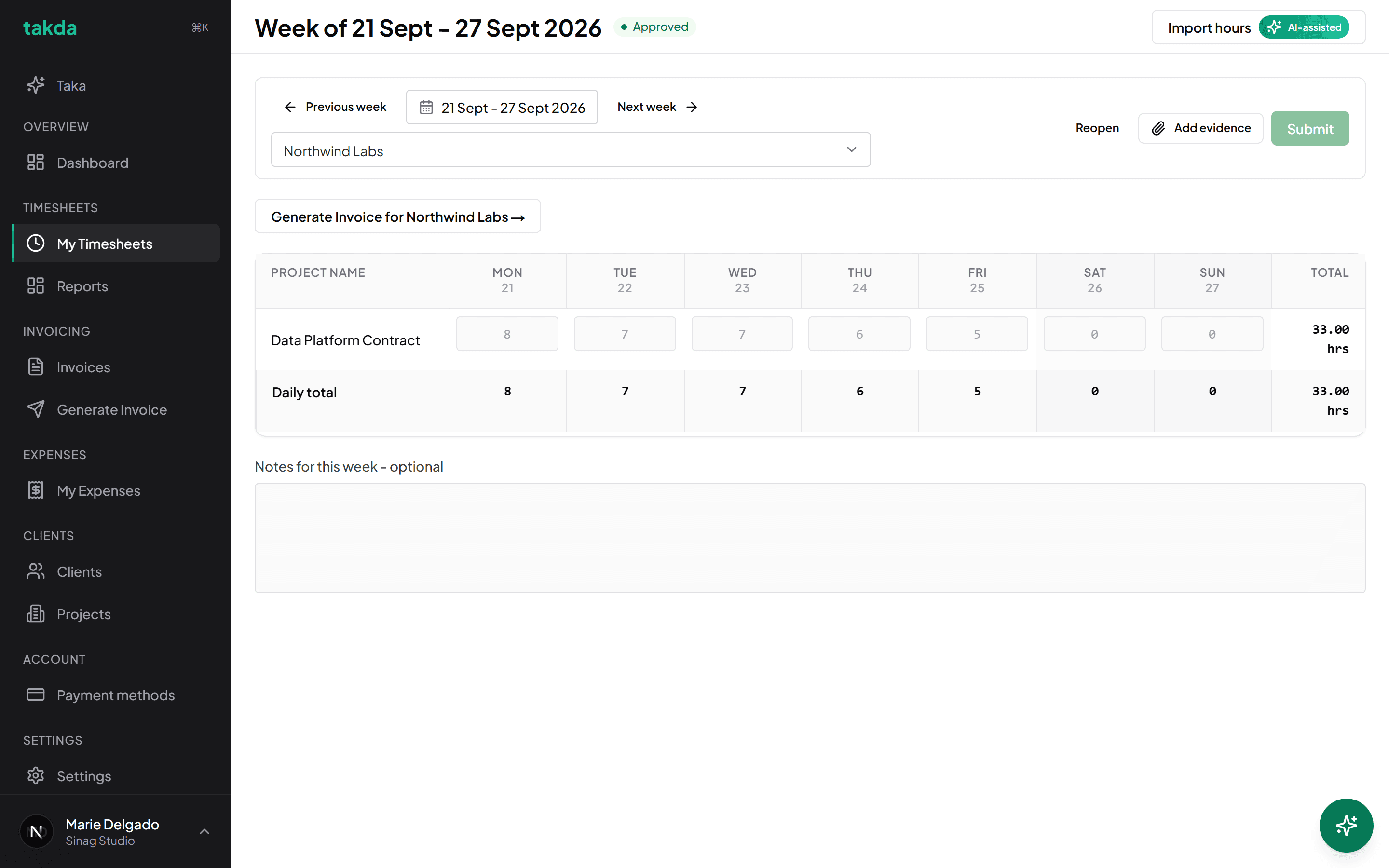
A finished week. The status next to the date reads Approved, which is what makes these hours available to an invoice. Attach evidence if the client asks for it
Add evidence attaches links, notes, or screenshots to the week. Whoever approves the timesheet sees them in the approval summary, so they are not approving a number with no context.
This is optional. Skip it if your client does not ask for backup.
Submit the week
Submit sends the week for approval and locks the cells so the numbers cannot drift afterwards. On a team, this is where a manager or approver picks it up. On a solo account you approve your own week.
Reopen unlocks a submitted week if you need to correct something before it is billed.
Build the invoice
Generating an invoice does not retype anything. It pulls the approved hours for a client and a date range, turns them into line items, and lets you edit before anything is final.
Choose the source, the customer, and the period
From tracked work is the option that pulls approved time and reimbursable expenses. Manual invoice is the escape hatch for billing something you never tracked, like a fixed fee or a deposit.
Pick the customer, then set the period. Takda reads the client's billing config, so if that client is billed twice a month it says so under the dates and tells you the next invoice day.
The panel on the right is the invoice's settings: number, issue date, payment terms, currency, and whether payment reminders go out automatically. Currency comes from the client, which is how one account bills a Manila client in pesos and an overseas client in dollars without any special handling.
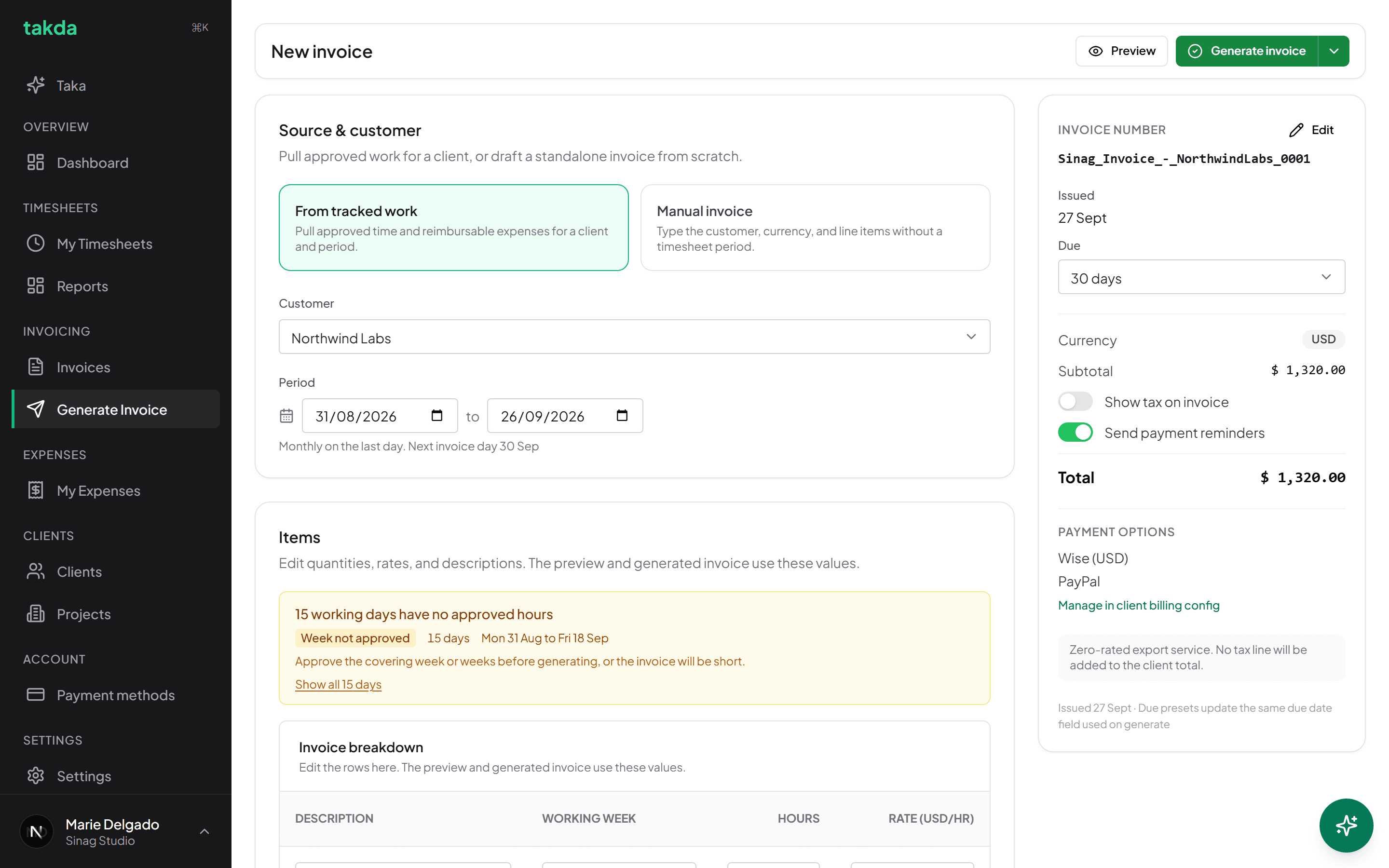
The period is the question that matters. Everything approved and unbilled inside it gets pulled in. Check the line items
Items shows what the period found: one line per project and week, with hours, rate, and amount. Reimbursable expenses appear in their own section underneath if the client has any approved and unbilled.
Everything here is editable. Change a description your client will not recognise, adjust a quantity, correct a rate. What you see is what gets billed.
An empty Items list almost always means one of three things: the hours are not approved yet, they are outside the period, or they were already billed on an earlier invoice.
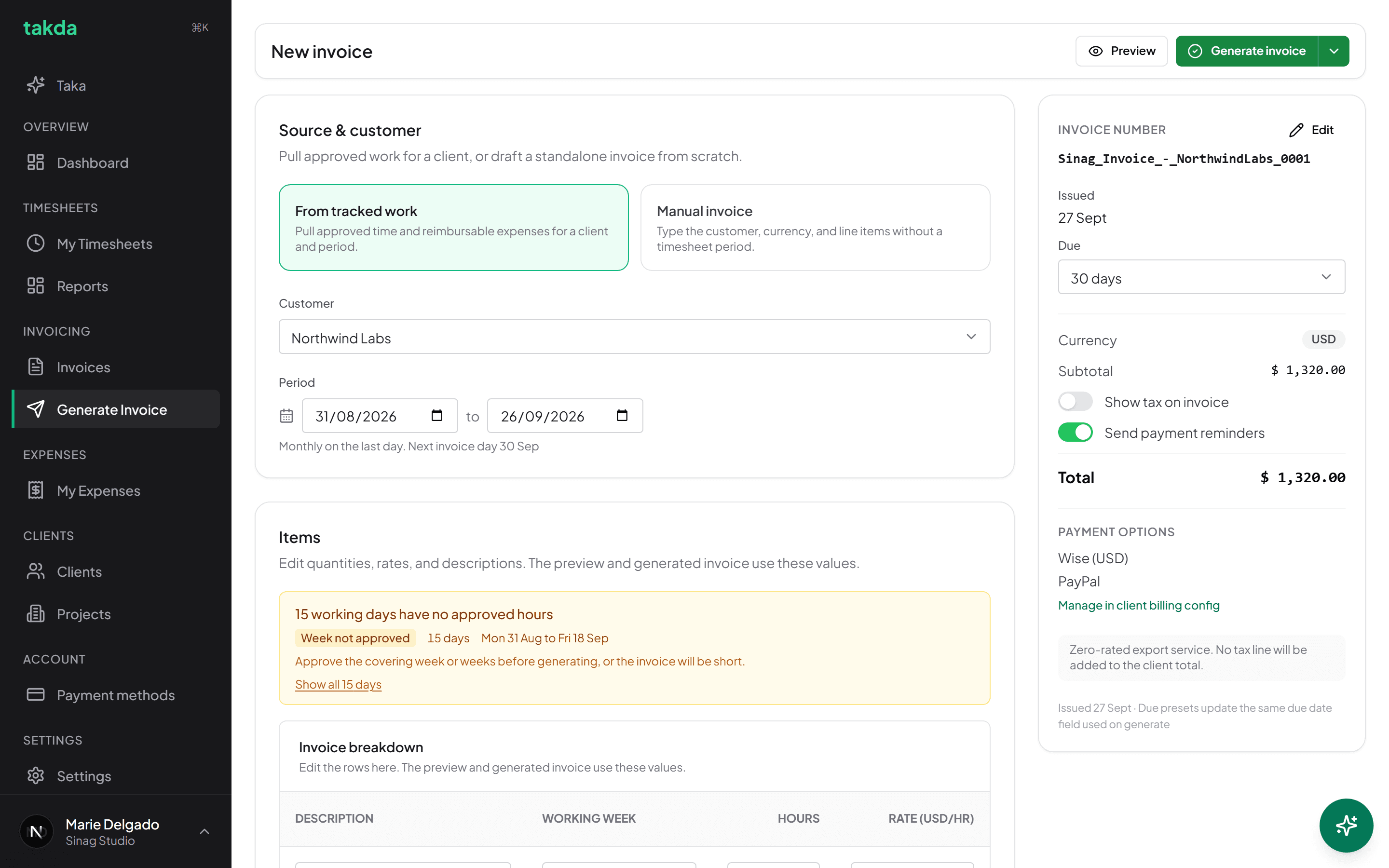
Pulled from approved timesheets, not retyped. Edit anything that would confuse the person paying it. Preview the document
Preview renders the actual PDF your client will open, with your logo, your accent colour, your address, and the payment rails you keep on file. Nothing is generated and nothing is sent at this point.
Read it the way your client will. The invoice number, the period, and the payment options are the three things people query by email, so they are the three worth a second look.
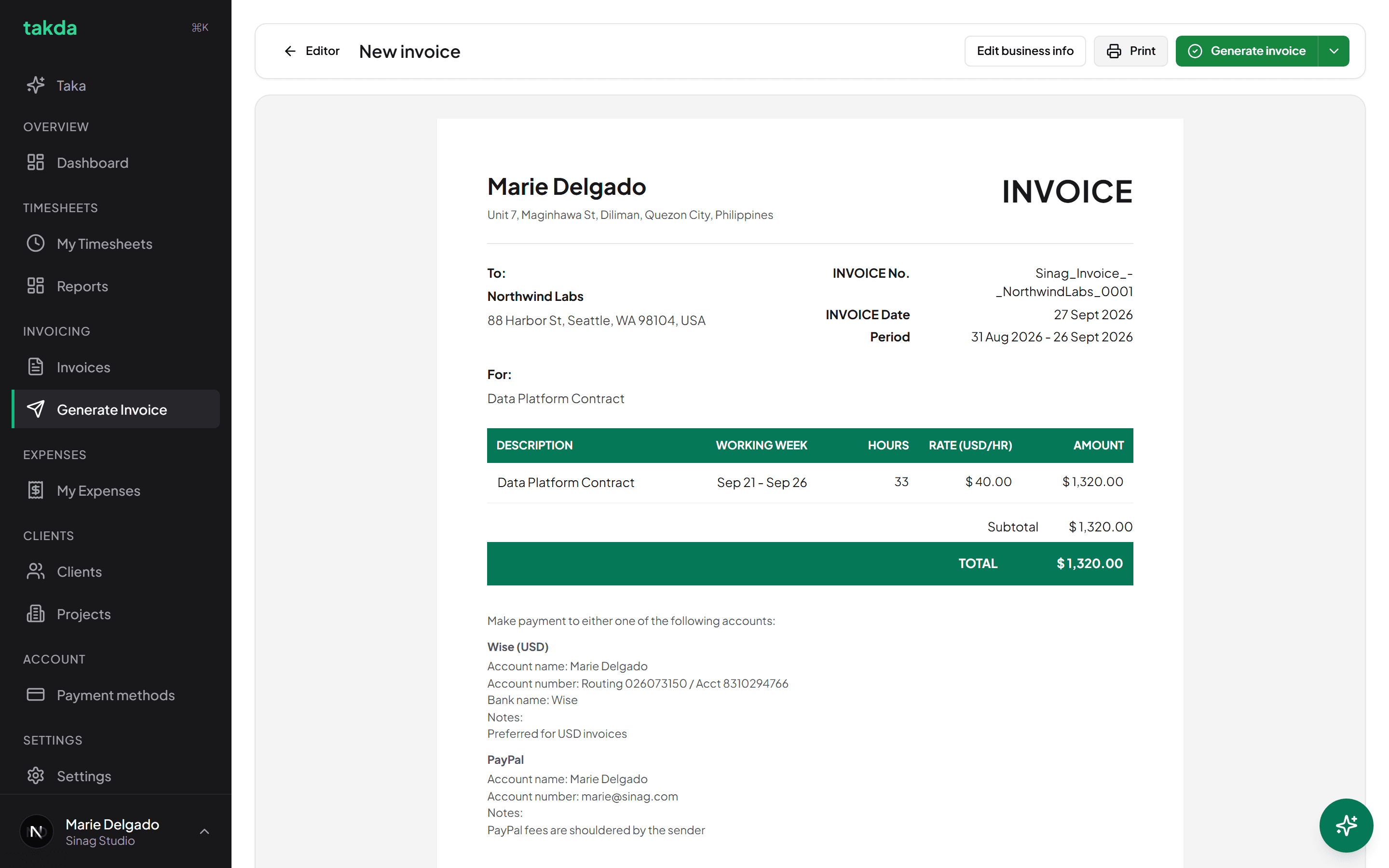
The finished document, with the payment rails that suit the invoice currency.
Send it and track it
Generate the invoice
Generate invoice commits it. The invoice gets its number, the timesheets behind it are marked as invoiced so they can never be double billed, and it appears in your Invoices list.
Up to this point nothing was permanent. After this point the invoice exists as a record.
Review and send the email
Send opens the email before it goes anywhere. Recipients, CC, subject, and message are all editable, and the PDF is attached automatically.
The green chips are tokens. They fill themselves in per invoice, so a template written once says the right invoice number, period, total, and payment options every time. Set the template once on the client and you never touch it again.
Send now is the only irreversible button on this screen. Everything above it can be edited or cancelled.
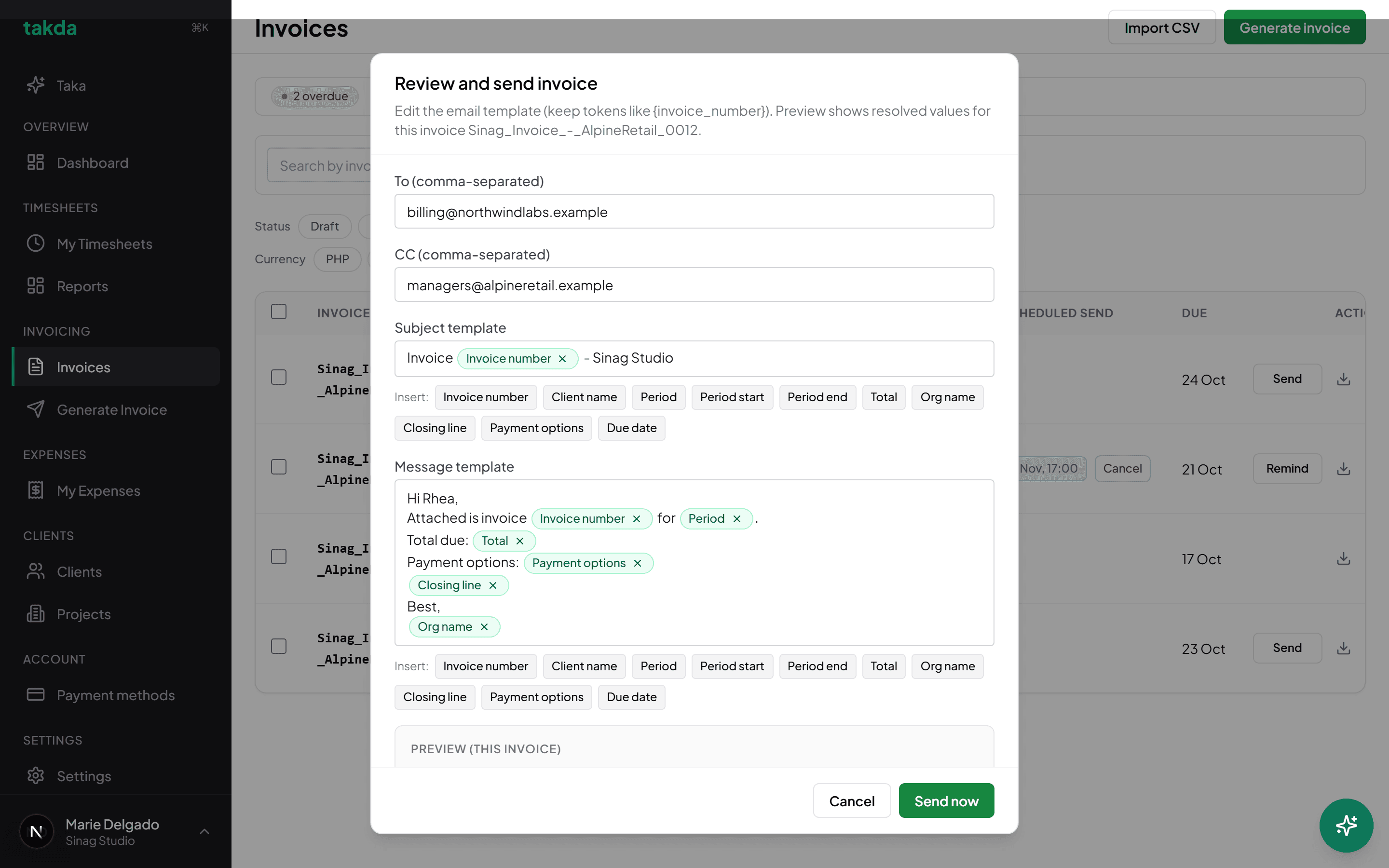
The email before it leaves. Tokens resolve per invoice, so one template serves every send. Watch it from the Invoices list
The list is the answer to who owes me what. The bar at the top counts overdue and pending invoices and what has been paid this month, and you can filter by status, client, currency, or period.
Remind sends a chase for an invoice that has gone quiet. Scheduled send queues an invoice to go out on a date instead of now, and can be cancelled while it is still waiting.
When the money lands, mark the invoice paid. That is what keeps the overdue count honest and stops the reminders.
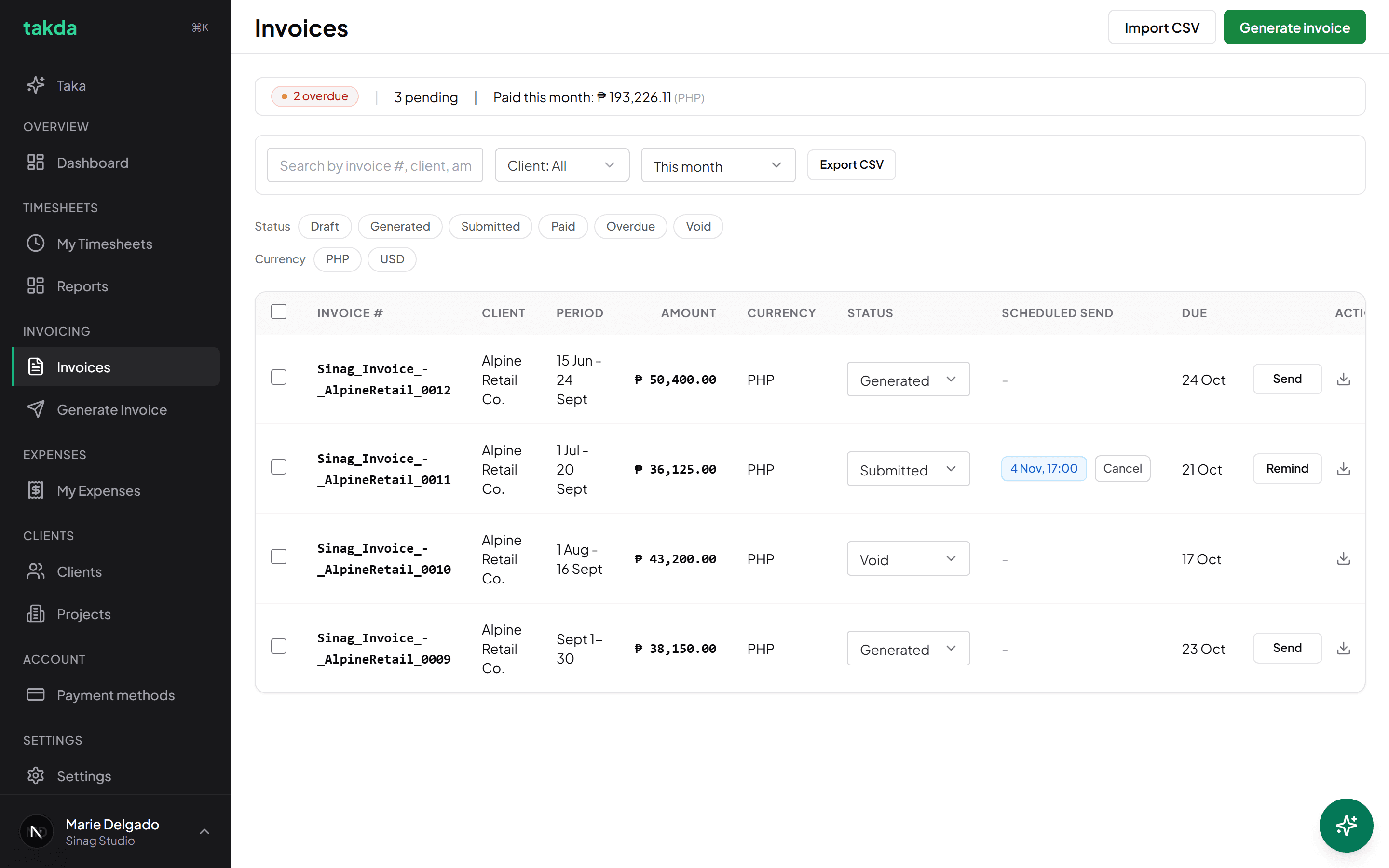
Every invoice, with what is overdue and what has already been paid this month.
What each invoice status means
Status drives the reminders and the overdue count, so it is worth knowing which is which.
| Status | What it means | What happens next |
|---|---|---|
| Draft | Started but not committed. No number assigned. | Finish it, or delete it. Nothing is sent from here. |
| Generated | A real invoice with a number. The hours behind it are locked. | Send it now, or schedule it for a date. |
| Submitted | Sent to the client and waiting on payment. | Reminders go out on your schedule until it is paid. |
| Overdue | Past its due date and still unpaid. | Chase with Remind, or mark it paid if the money arrived. |
| Paid | Settled. It stops counting toward what you are owed. | Nothing. It stays on record for your books. |
| Void | Cancelled after being generated. | Nothing is sent. The record is kept rather than deleted. |
Making the loop a habit
The freelancers who get paid on time are not the ones with the best tracker. They are the ones who bill on the same day every fortnight without thinking about it.
Two settings do most of that work for you. Set the invoice day on each client so Takda knows when that client's cycle closes and can tell you the next invoice day before you ask. Then leave payment reminders switched on, so a quiet invoice chases itself instead of sitting in your head as a task you keep not doing.
If you would rather ask than click, Taka reads your own clients, hours, and invoices and answers in plain language. Asking what is unbilled for a client is faster than filtering a list, and it works from any screen.
Common questions
- Why is my Items list empty?
- Almost always one of three things: the hours are still in draft or submitted rather than approved, they fall outside the period you set, or they were already billed on an earlier invoice. Open the week in My Timesheets and check the status next to the date.
- Can I invoice work I never tracked?
- Yes. Choose Manual invoice instead of From tracked work, then type the line items. Use it for fixed fees, deposits, and retainers that have no hours behind them.
- Can I bill one client in pesos and another in dollars?
- Yes, and you do not have to do anything special. Currency is a property of the client, so the invoice takes it automatically, and the payment options shown are the rails that suit that currency.
- Does Takda file my BIR returns?
- No. The Percentage Tax figure on an invoice is a reference calculation so you know what to set aside, and it is never added to your client's total. Takda is billing operations software, not a tax filing service. For filing, use a service built for it.
- Can I stop an invoice after I have scheduled it?
- Yes. A scheduled send sits in the Scheduled send column with a Cancel button until it goes out. Once it has been sent you cannot unsend it, though you can void the invoice and issue a corrected one.
- What stops me billing the same hours twice?
- Generating an invoice marks the timesheets behind it as invoiced, and invoiced work is not offered to a later invoice. That is why the same week never appears in two Items lists.
Try it on your own work
The free plan covers the whole loop in this guide. No card, and nothing here needs a paid feature.